Survey QA
This page shows you how to QA surveys on Pleras. If you're interested in learning about the checks we run on experiment code before it reaches you, see Quality Assurance.
What the Exit Intent Survey is for
The survey catches people at the moment they're about to leave without buying, and asks them why. Your analytics already tell you where people drop out. What they can't tell you is what stopped them, in their own words.
These answers help to prioritise which experiments to run based on what's creating friction for users. Reasons that come up again and again are the ones worth testing first.
Exit intent runs on desktop only.
Where to find the survey
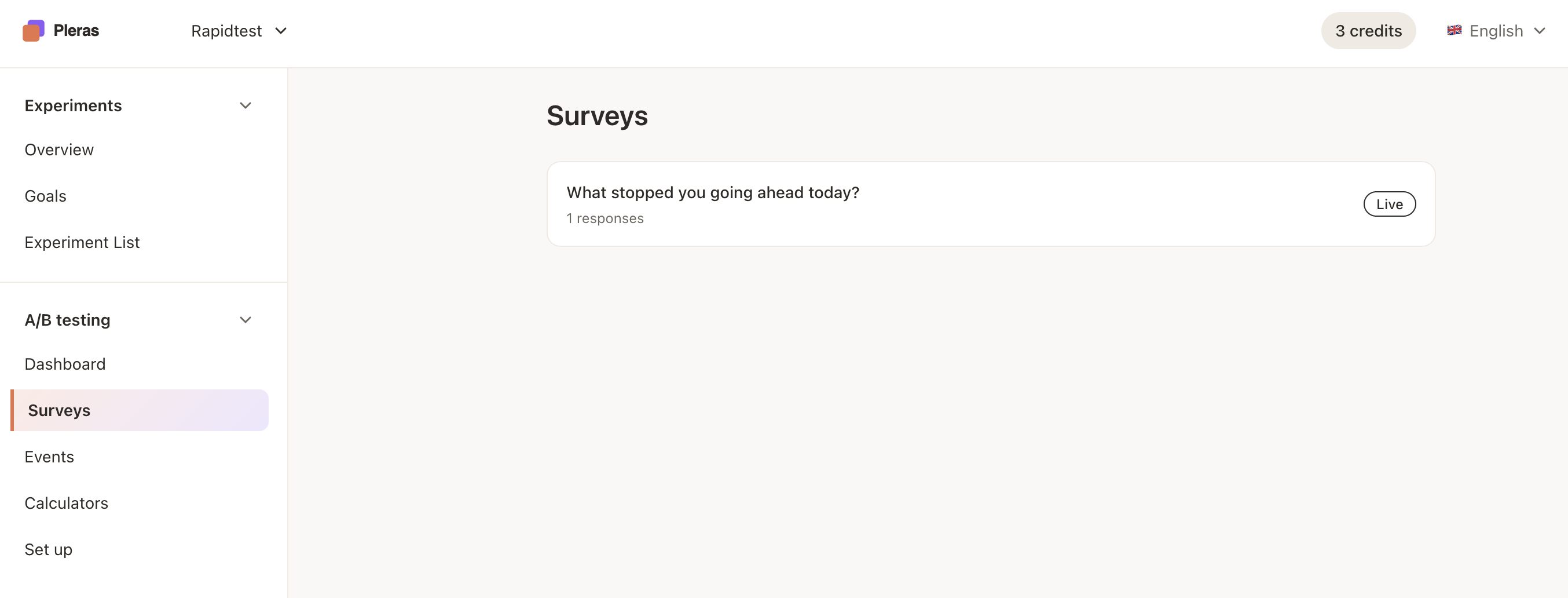
Open the survey in your account under A/B testing → Surveys
Add the QA flag to the URL
Add __pleras_qa=true as a query parameter to the page you want to test. Note the two leading underscores:
https://rapidtest.co/?__pleras_qa=trueIf the URL already has a query string, join it with & instead of ?:
https://rapidtest.co/products?colour=blue&__pleras_qa=trueLoad that URL and let the page finish loading before you do anything else.
Trigger the exit intent
Exit intent fires when it looks like you're leaving the page. Two ways to produce that signal:
- Move the cursor up out of the top of the page, towards the browser tab bar or the window close button.
- Switch to a different tab.
The survey should appear. If it doesn't, see If the survey doesn't show below.
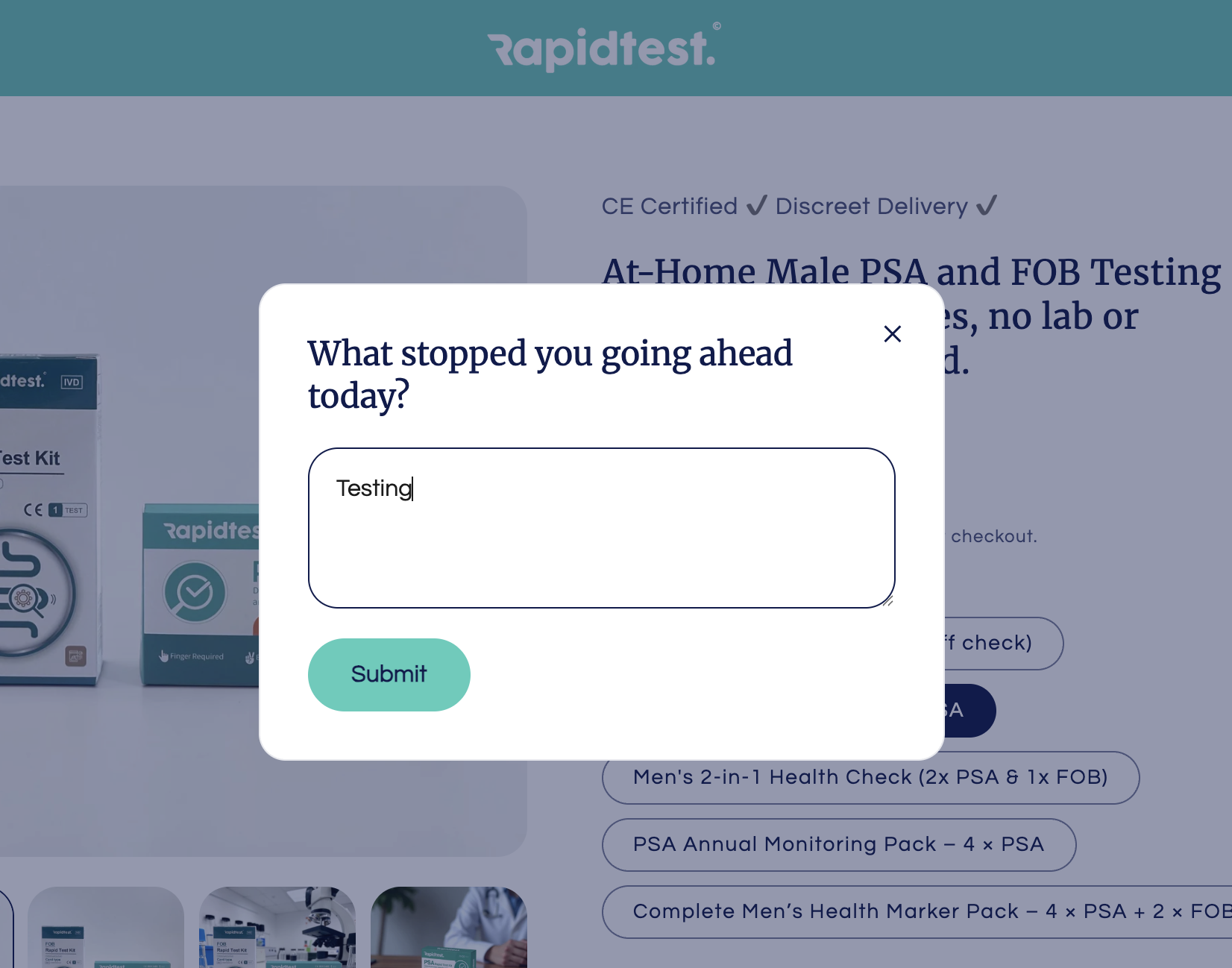
Submit a test answer
Type an answer and submit it. Use something you'll recognise later, rather than a plausible-sounding sentence a user could type.
A QA response is stored in the same responses table. A recognisable string is what lets you tell your own test answers apart from genuine visitor feedback when you read the results.
Check the response landed
Go to A/B testing → Surveys. The survey card shows its current response count. Open it. Responses are stored immediately, so your test answer is there as soon as you submit it. If the count hasn't moved, try refreshing the page.
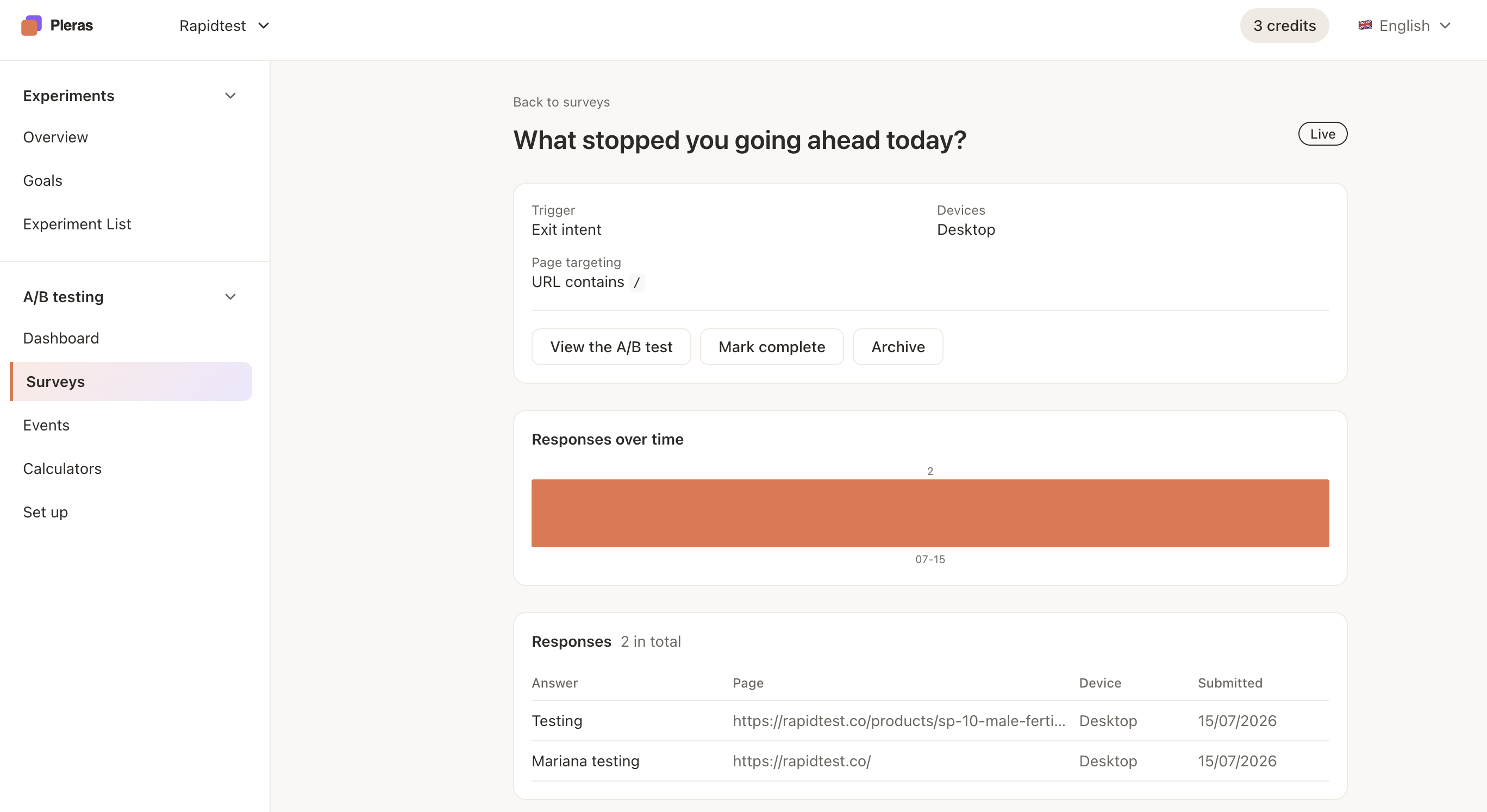
The Responses table at the bottom of the survey logs a row per answer. Check it against what you just did:
| Column | What it should say |
|---|---|
| Answer | The text you typed, in full. |
| Page | The page you tested on. |
| Device | The device you answered from. |
| Submitted | Date of submission. |
If all four match, the survey is wired up correctly and storing data.
If the survey doesn't show
Work through these in order:
- Check the flag for typos. It's two underscores, then
pleras_qa=true. A single underscore won't do anything. - Check you're on desktop. Exit intent doesn't run on mobile, so the survey will never show there, flag or no flag.
If the survey still doesn't show with the flag on a matching page and device, tell us and we'll look at it.