Installing the snippet
The Pleras snippet is a single line of code you add to your site. Once it's in place, the tests you set up in Pleras run on your live pages and their results come back to your dashboard. This guide covers what it is, where to copy it from, and how to add it to your site, whether you edit the code yourself or use a platform like WordPress or Shopify.
What the snippet is
It's one <script> tag. It loads on its own, in the background, so it doesn't hold up your page, and it's a few kilobytes in size. You add it once to your site's template and it then covers every page. You don't need to change it after that, and there's nothing to keep up to date on your side.
What it's for
The snippet is what connects your site to Pleras. With it installed, any test you set up in Pleras can run on your live site, and the results flow back to your dashboard. Without it, nothing runs. It's the one piece of setup that has to be in place before you can test anything, so it's the first thing to do.
Where to get it
Your snippet is unique to each of your sites, so copy it from your dashboard rather than from this page. In Pleras, open the site you want to test, go to Set up, and copy the Embed code.
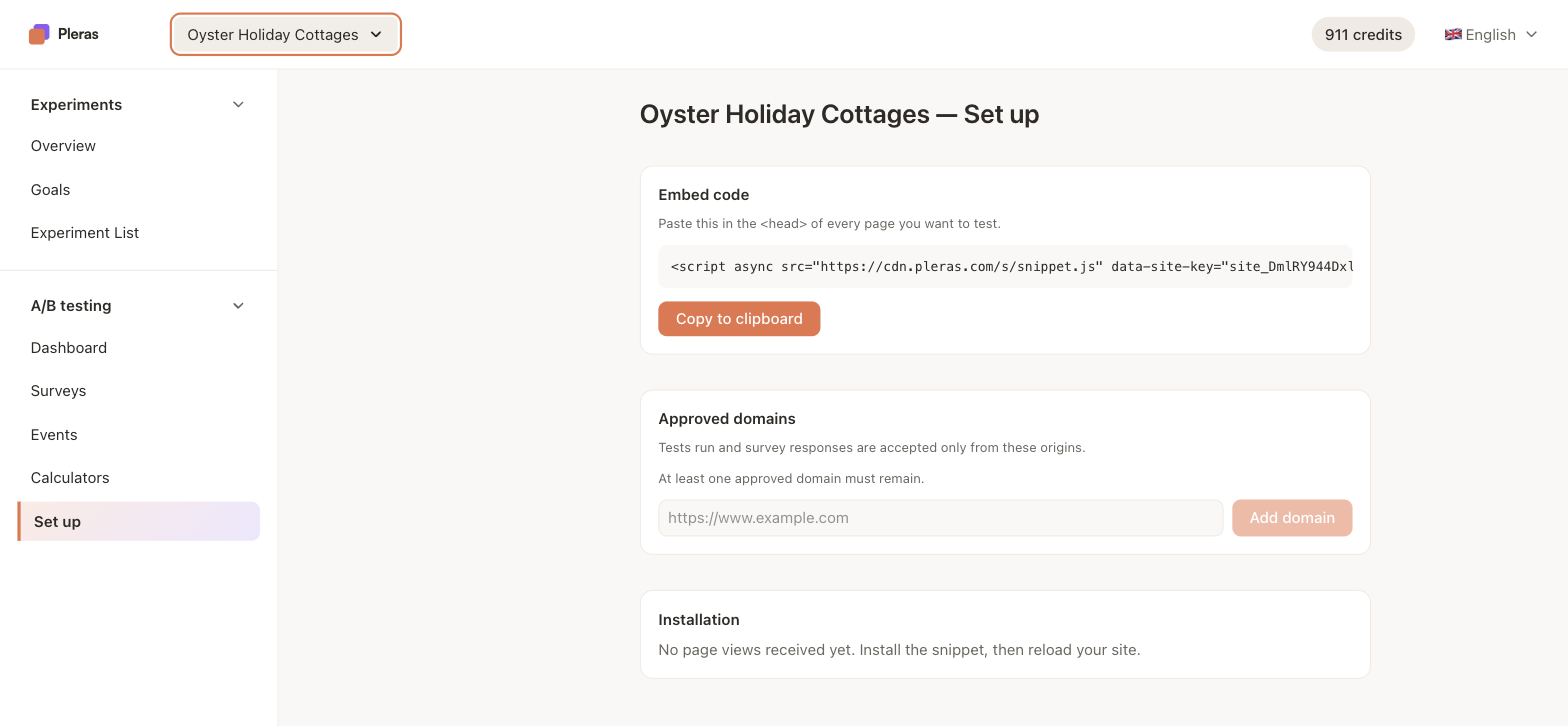
The embed code looks like this:
<script async src="https://cdn.pleras.com/s/snippet.js?siteKey=YOUR_SITE_KEY"></script>The siteKey in the address tells Pleras which site a page belongs to. The code in your dashboard has your real key already filled in, so use that one, not the example above.
Adding it to your site
The snippet goes in the <head> of your pages, as near the top as you can put it. Add it once, in a place that's shared across your site (a template, theme, or layout file), so it loads on every page rather than adding it page by page. Then follow the steps for your platform below.
Editing your site's code
If you or an engineer can edit the site's HTML, paste the snippet inside the <head> of your main template or layout, just before the closing </head> tag. That's usually the file that wraps every page, for example a header or layout partial. Save and publish, and it's live everywhere that template is used.
Google Tag Manager
If you manage scripts through Google Tag Manager, you can add the snippet without touching your site's code:
- In your GTM container, create a new tag of type Custom HTML.
- Paste the snippet as the tag's HTML.
- Set the trigger to All Pages.
- Save, then publish the container.
Tags in Google Tag Manager load a little later than code placed directly in the <head>. For most tests that's fine. If you can add the snippet straight to your template, that's the better spot.
WordPress
Two common ways, both without editing template files directly:
- A header-scripts plugin (for example WPCode, or "Insert Headers and Footers"): install it, then paste the snippet into its header or
<head>box. This is the simplest route and it survives theme updates. - Your theme's settings: many themes and page builders have a "header code" or "custom code" field in their settings. Paste the snippet there. Editing
header.phpdirectly works too, but use a child theme or a plugin so a theme update doesn't wipe it.
Shopify
- In your Shopify admin, go to Online Store, then Themes.
- On your current theme, open the code editor (the ... menu, then Edit code).
- Open the
theme.liquidlayout file. - Paste the snippet just before the closing
</head>tag. - Save.
This puts it on every page of your storefront.
Webflow
In your Webflow project, go to Project Settings, then Custom Code, and paste the snippet into the Head Code box. Save, then publish the site.
Squarespace
In your Squarespace site, go to Settings, then Advanced, then Code Injection, and paste the snippet into the Header box. Save.
Wix
In your Wix dashboard, go to Settings, then Custom Code (under Advanced). Add a new snippet, paste in the code, set it to load on All pages and in the Head, then save.
Other platforms
Any platform that lets you add code to the <head> of every page will work. Look for a setting called something like custom code, header code, or code injection, and paste the snippet into the head or header section so it loads across the whole site. If you can't find one, or you're not sure you've put it in the right place, get in touch and we'll help you place it.
Approved domains
For the snippet to work, Pleras needs to know which domains it's allowed to run on. On the same Set up page, under Approved domains, add the address of the site where you've installed it (for example https://www.example.com). If a domain isn't on the list, the snippet still loads but Pleras won't return anything to it, so no tests run. Add every domain you install on, including any staging or secondary domains you use.